Operating System Management
From this area, you can manage the operating systems linked to a device template.
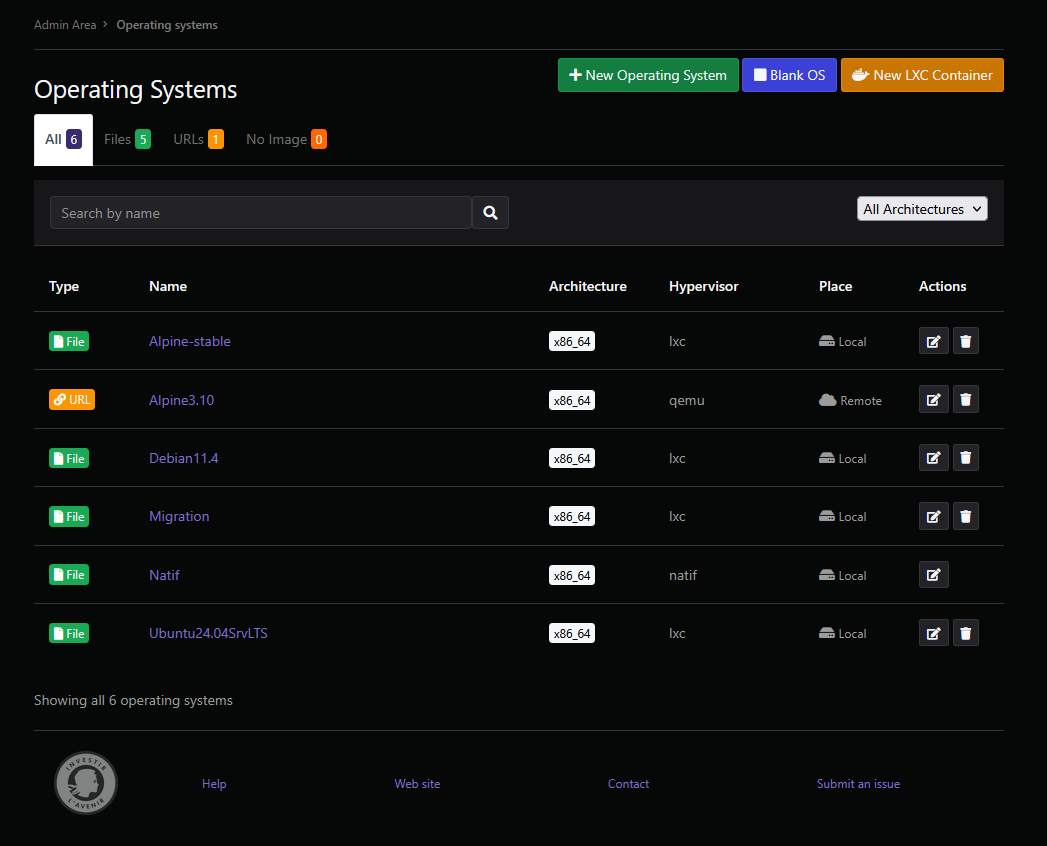
There are multiple default operating systems provided with RemoteLabz.
Tip
The operating system can be hosted through a local image or a link where RemoteLabz can retrieve the image .
Operating System creation
Operating System
To create an operating system, you have to click on the New Operating System button. You will be brought to a new screen.
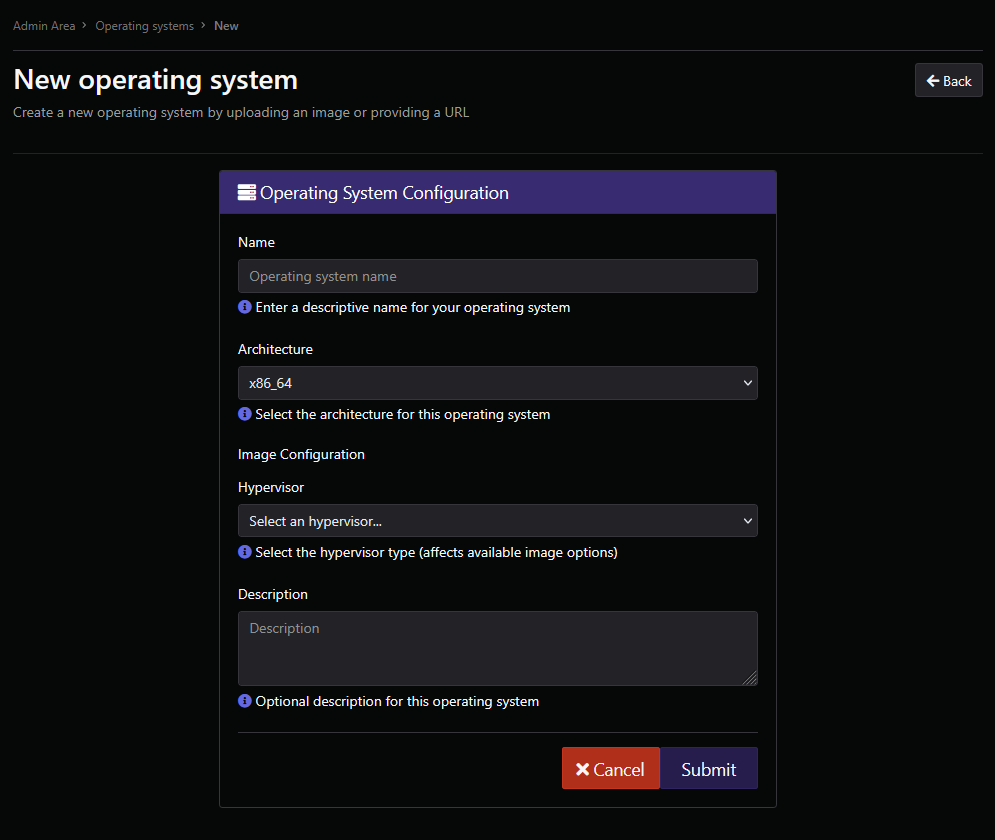
From there, you can choose its parameters such as:
- Name: name of the new operating system.
- Architecture: architecture under which processes will be executed.
- Hypervisor: hypervisor where the image will run.
- Description: optional description of the operating system.
According to the hypervisor type, other fields must be completed:
- Template Name: if the hypervisor type is LXC, a template name should be specified.
- Image Source Type: if the hypervisor type is QEMU, it is the source of the image, which can be an uploaded file (local file), an URL (link to a download server) or a filename.
Warning
You can only provide an image URL (link) or a file through the image file field, but not both!
Blank OS
You can create a blank operating system by clicking on the Blank OS button.
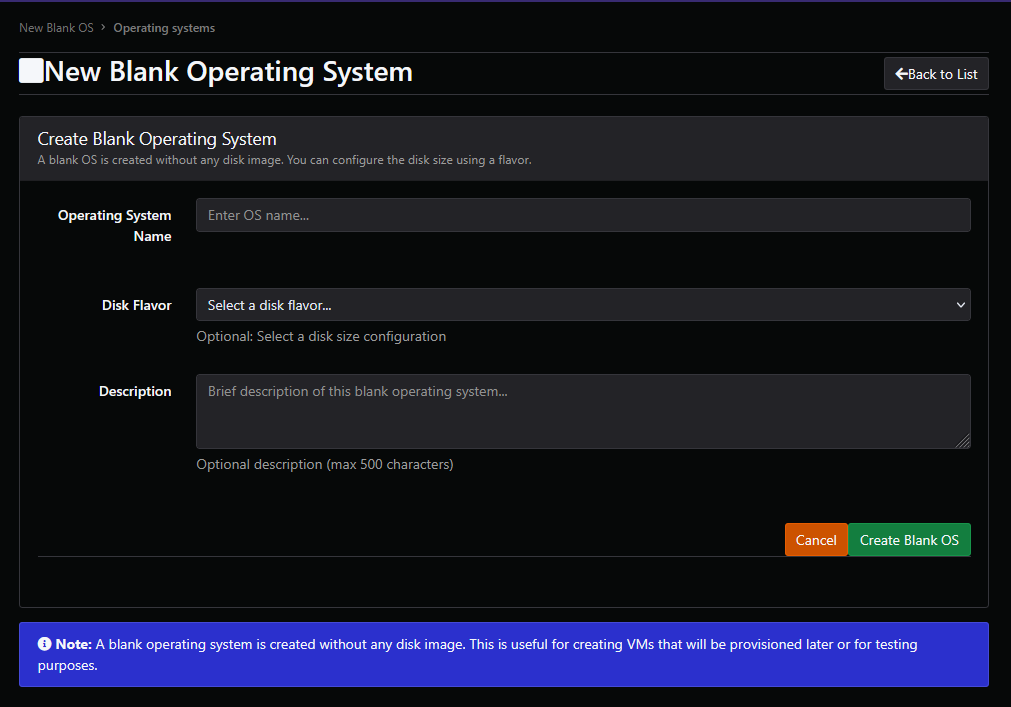
- OS Name: name of the operating system.
- Disk Flavor: optional disk size in gigabytes.
- Description: optional description of the operating system.
This blank OS will be created without any disk image, which is useful for testing purposes.
Warning
A blank OS should only be linked to one VM.
LXC container
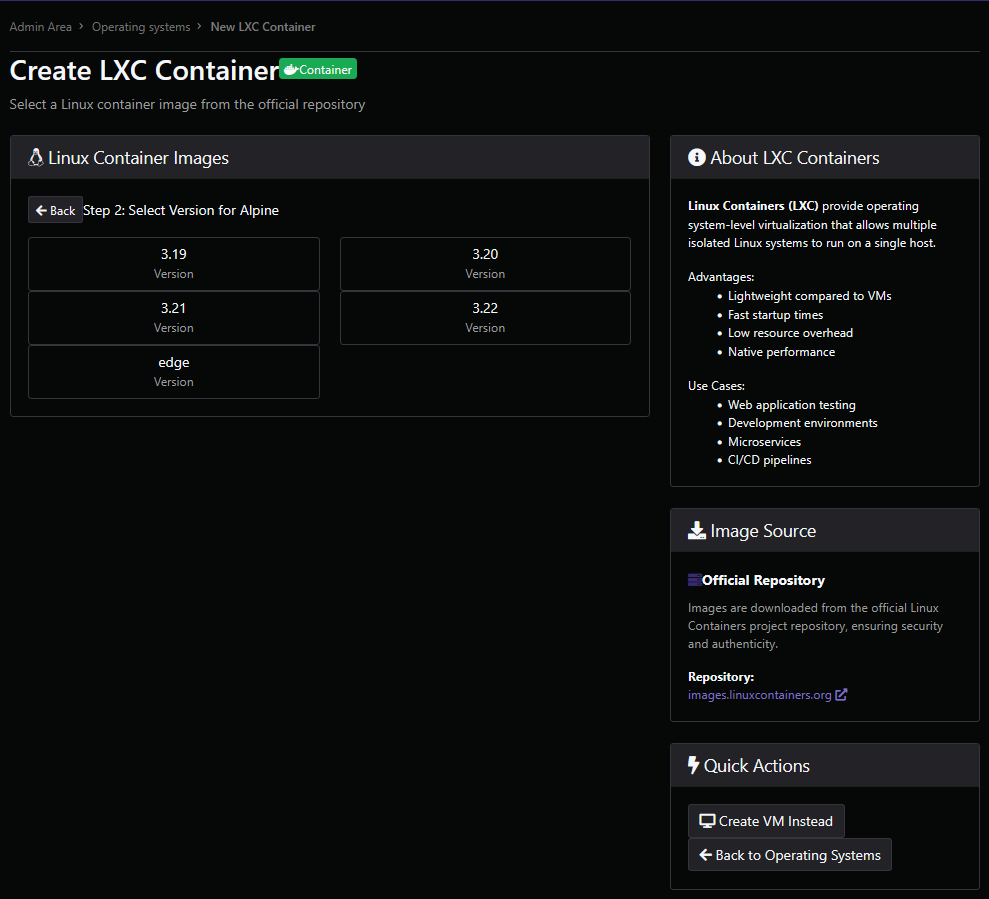
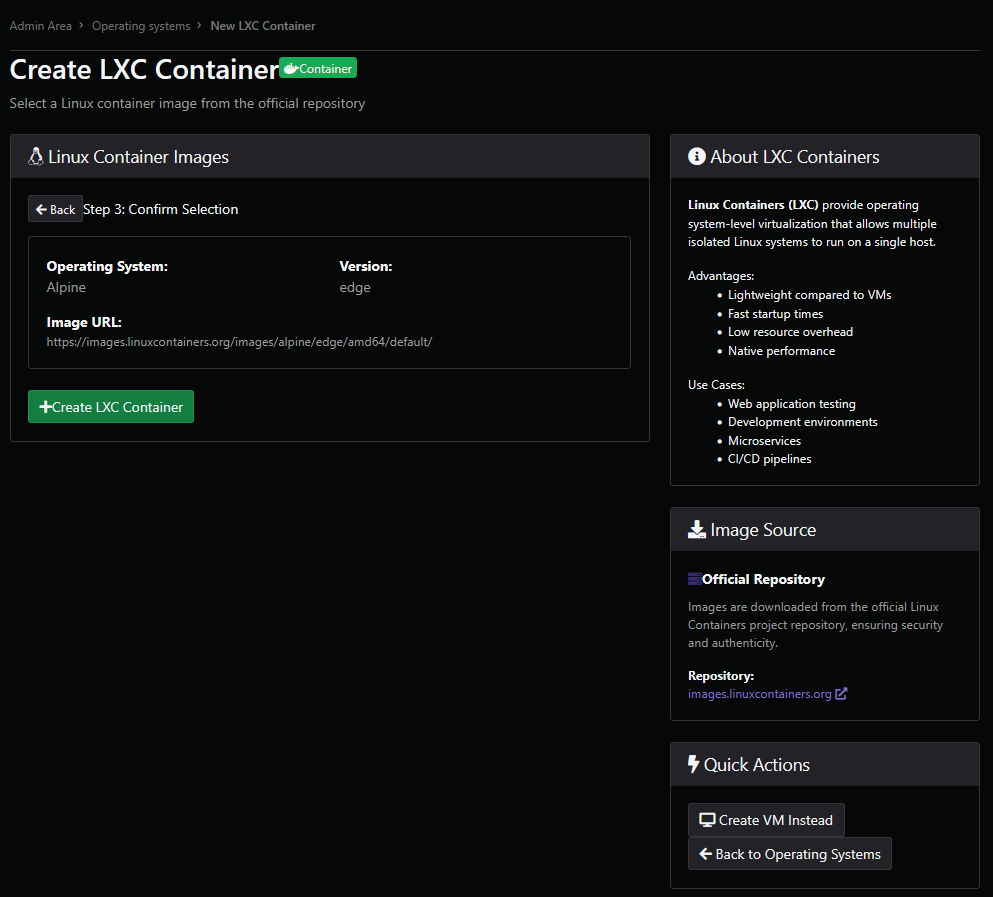
You can also create an LXC container: click on New LXC container. You have to follow these steps:
- Step 1: select an OS among 25 Linux distributions. Images are downloaded from the official Linux Containers project repository.
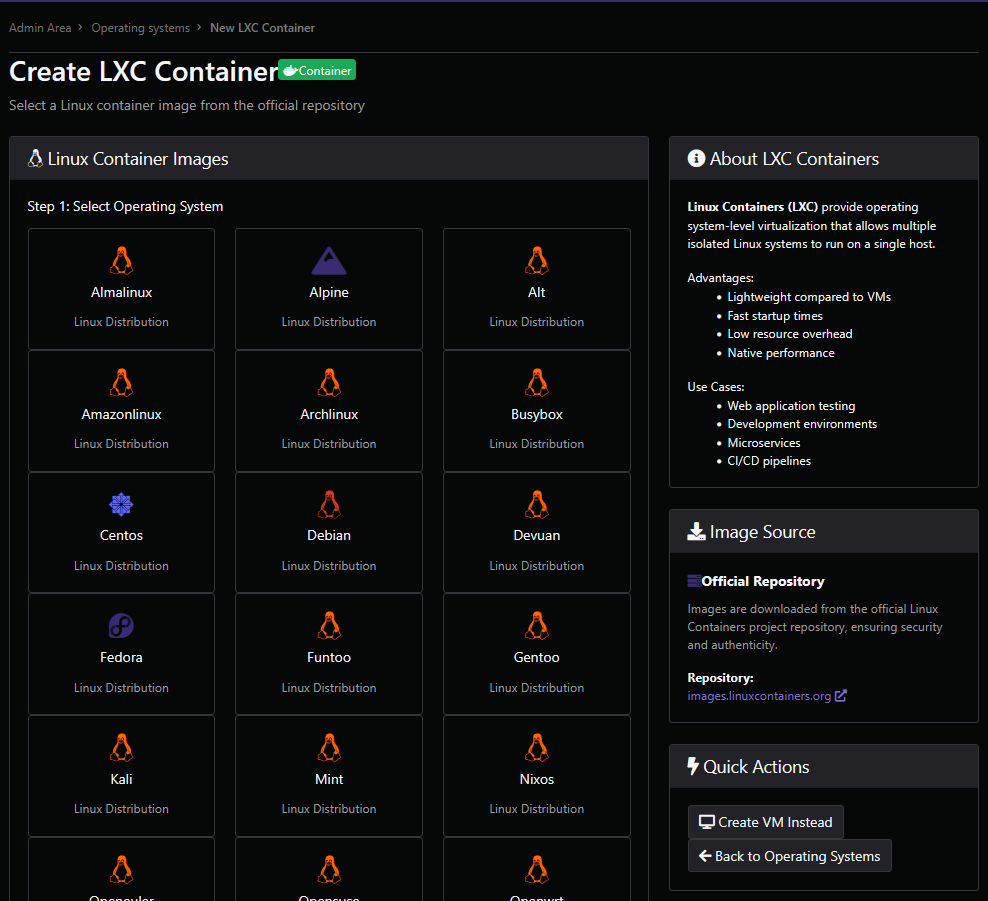
- Step 2: choose a version for the OS.
- Step 3: confirm your choice.
Operating System edition
Once selected, you can also edit the Operating System's name through the Edit Operating System button, or delete it through the Delete Operating System button.
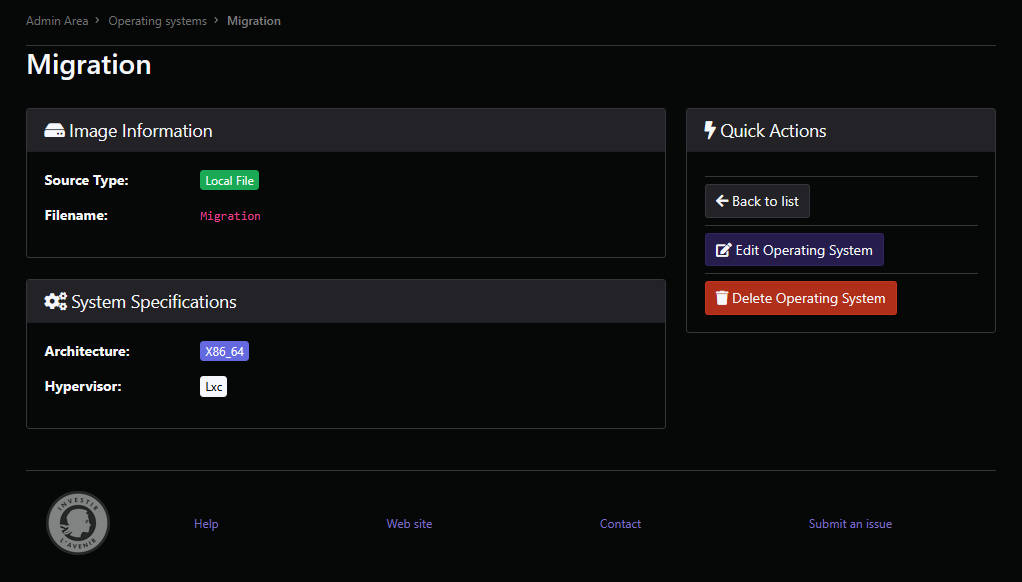
After you have pressed the Edit Operating System button, you will be able to edit the Operating System through this screen.
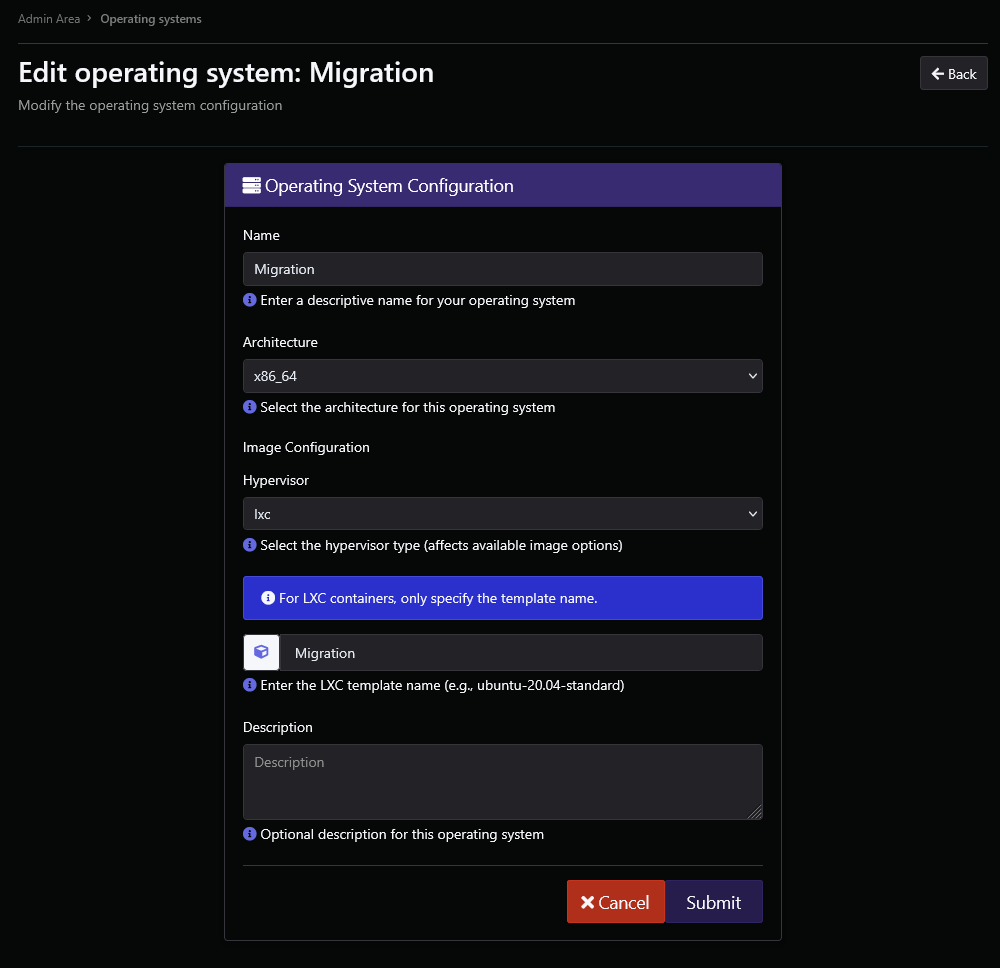
Click on the Submit button to validate your changes.