ISO management
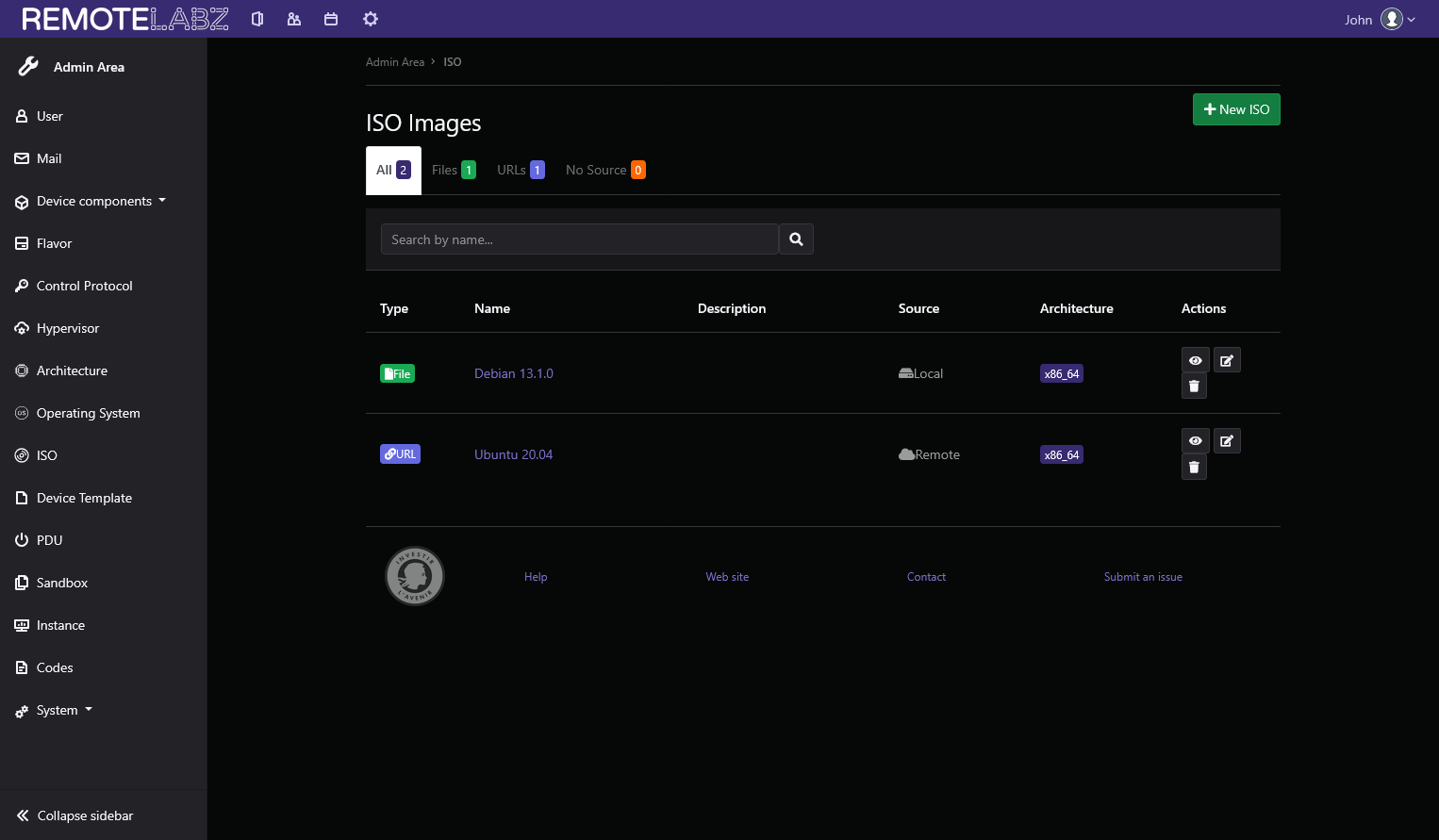
In this area, you can manage all your ISO images.
Tip
The ISO image can be hosted through a local image or a link where RemoteLabz can retrieve the image .
ISO creation
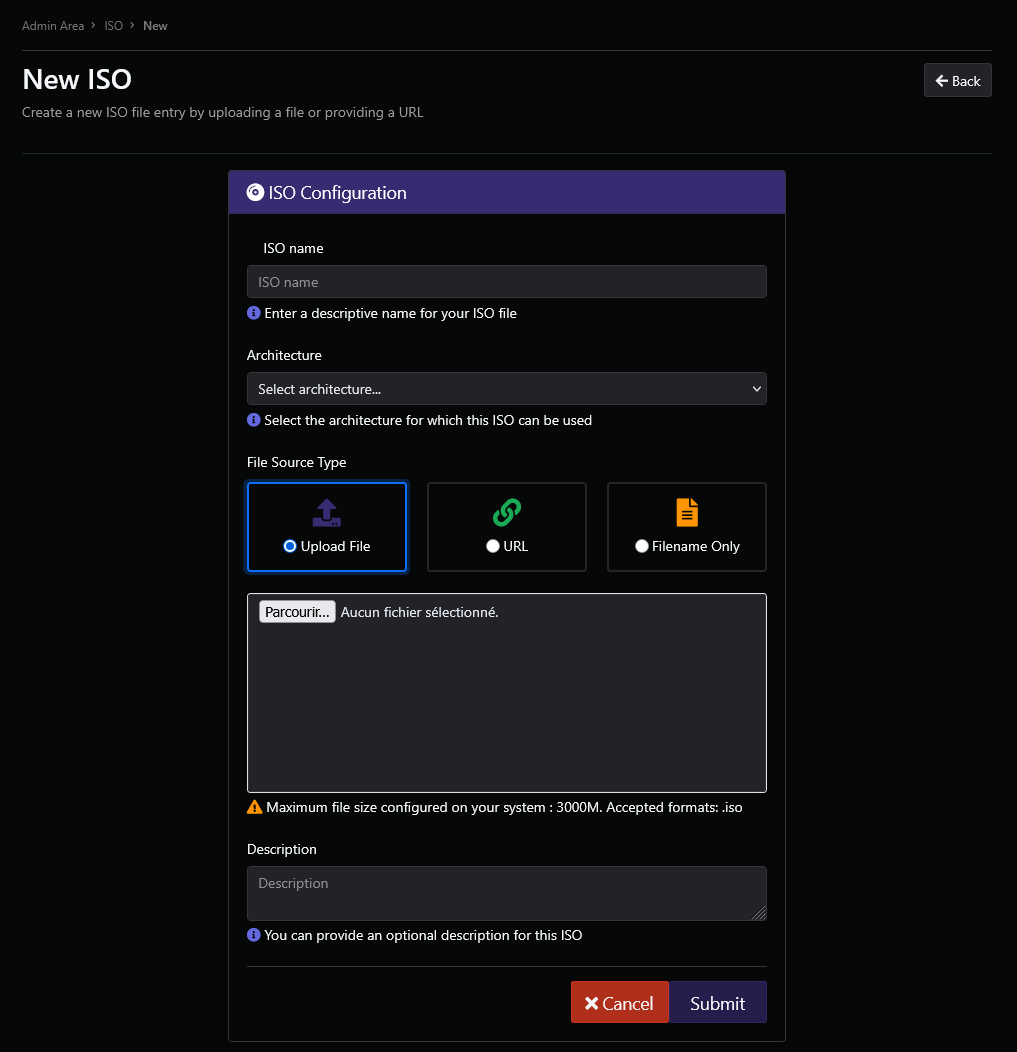
To create a new ISO image, you have to fill the form with:
- Name: name of your ISO image.
- Architecture: architecture to select, for which this ISO will be used.
- File Source Type: upload from a file (local file) or from an image URL (remote file).
- Description: optional description of your ISO image.
ISO edition
After selecting an ISO image, you can edit it through the Edit ISO button, or delete it with the Delete ISO button.
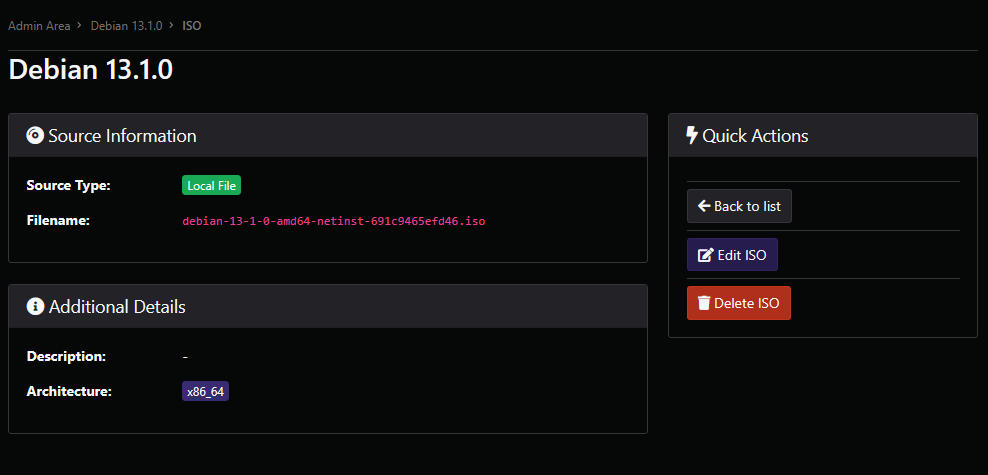
You have access to information such as the source and additional details.
Once you have pressed the Edit ISO button, you will be able to edit the ISO through this screen.
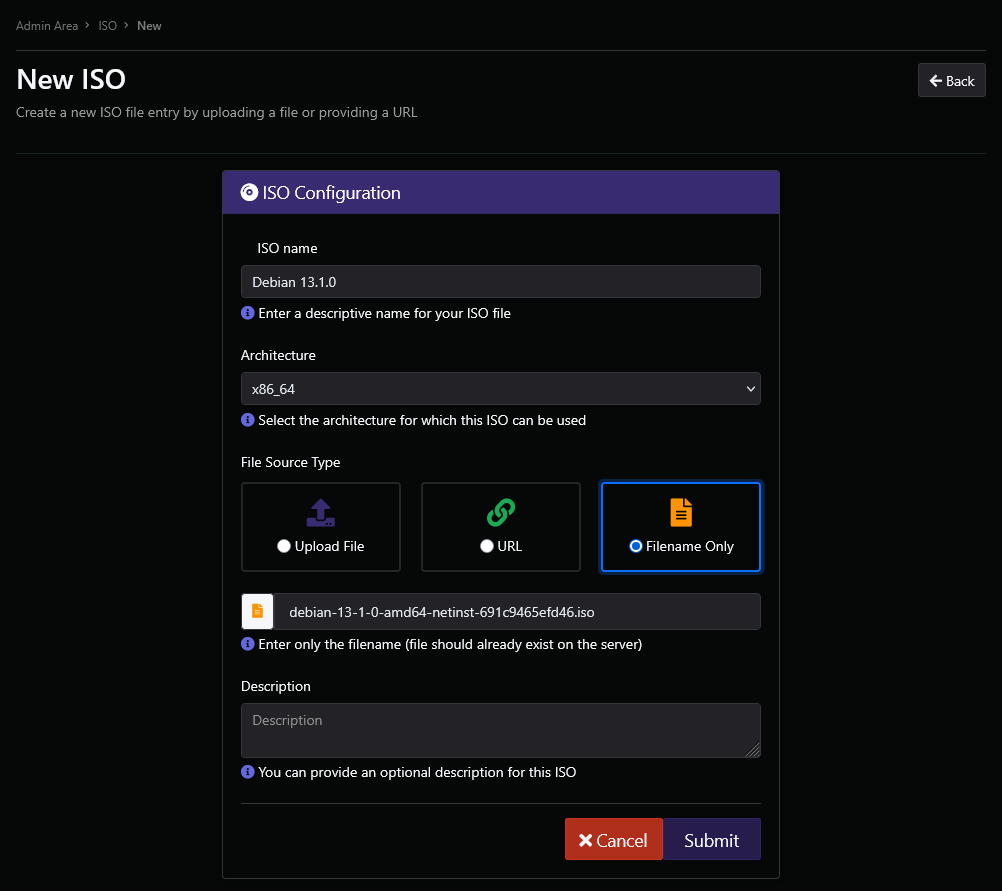
Then, click on the Submit button to validate your changes.