Device Template management
Warning
This page only concerns the Editor Teacher role, not the Teacher role.
See Profile layout for more details about the Editor Teacher role.
From this area, you can manage every existing device template.
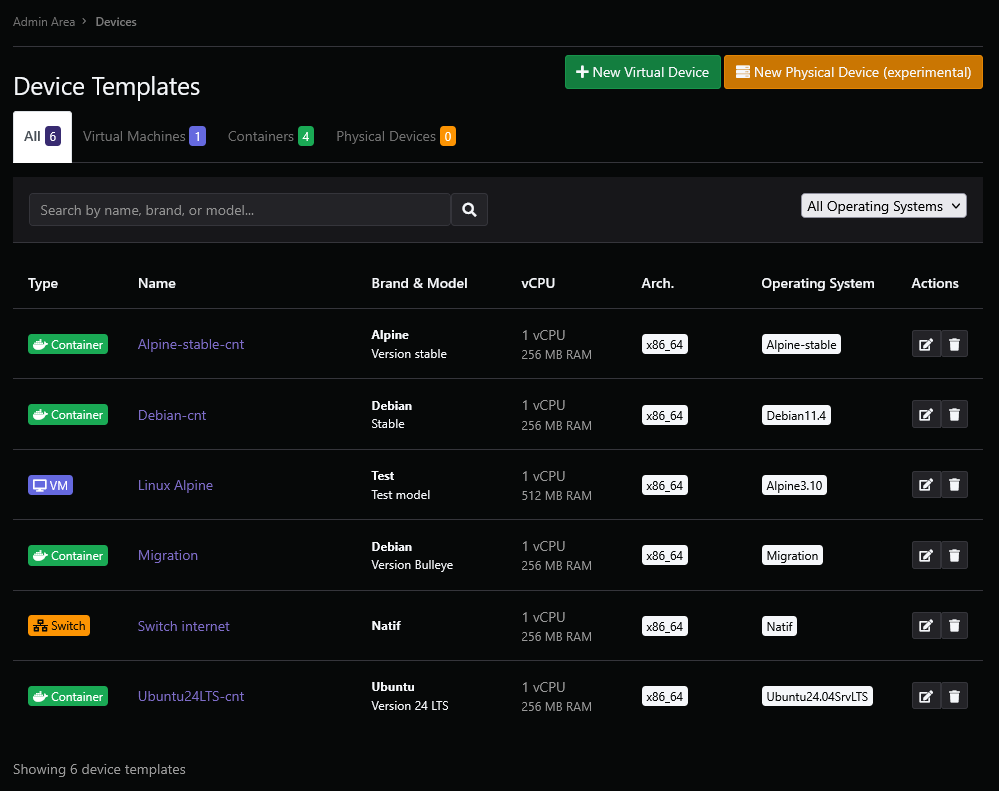
A device template is a model from which a lab device is created. You can create two types of device: virtual or physical. It includes various parameters like:
- Name: name of the template.
- Icon: icon of the device.
- Brand: brand of the device.
- Model: model of the device.
- Operating System: corresponds to the device's Operating System.
- BIOS Type: corresponds to the firmware type, BIOS or UEFI.
- BIOS Filename: BIOS file to use.
- Flavor: memory profile it will use, controls the amount of allocated RAM.
- Nb CPU: number of CPUs.
- Nb Core: number of cores per CPU.
- Nb Socket: number of CPU sockets.
- Nb Threads: number of threads per CPU.
- Control Protocol types: control protocols used to administrate the device.
- Advanced Options: advanced QEMU options.
- Template: allow or disallow use in the lab editor.
Physical devices have 2 additional parameters:
- IP: IP address of the device.
- Port: port of the device.
Device template creation
Once you have clicked on the New Virtual Device or New Physical Device button, you will be brought to a new screen.
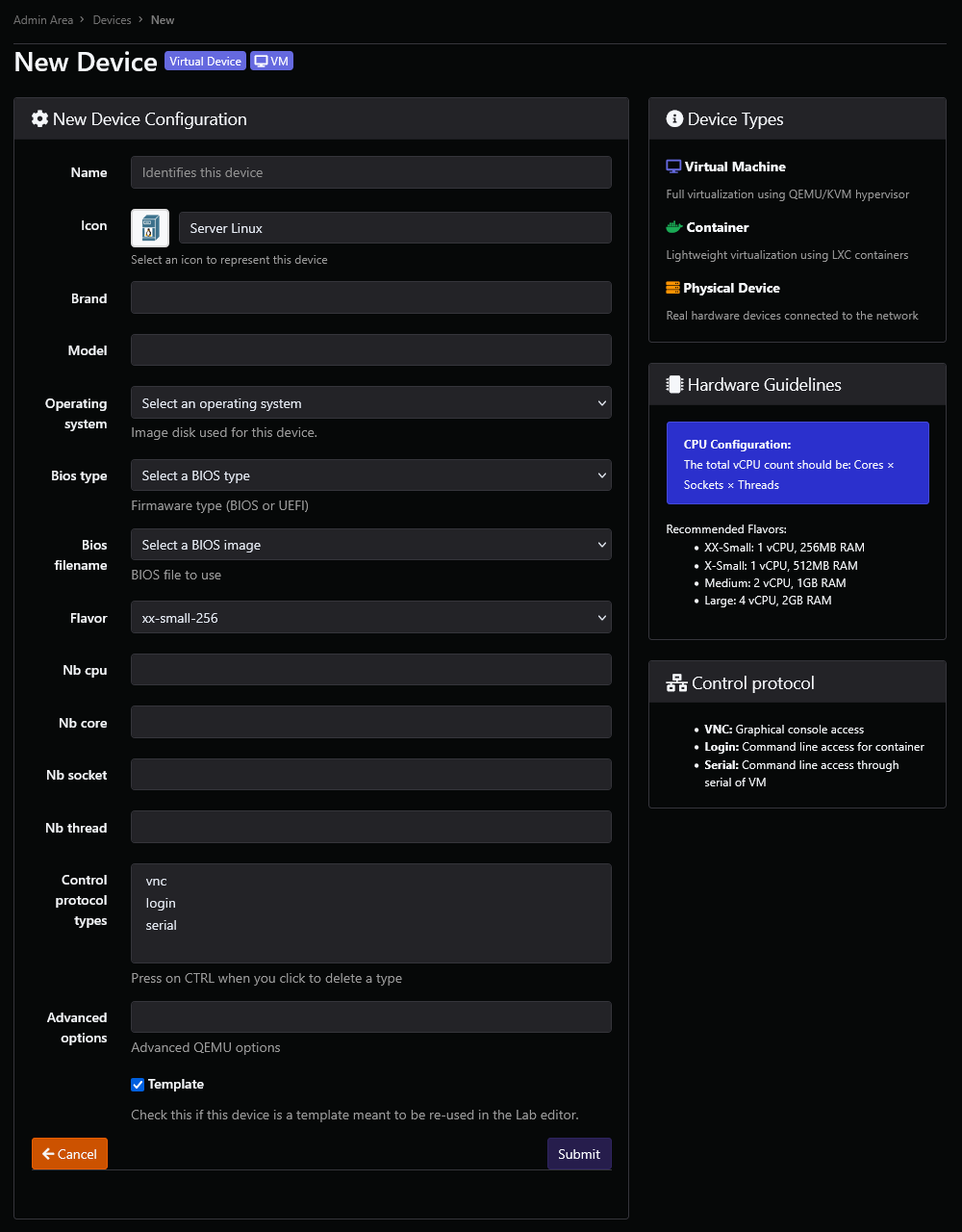
If you chose a blank OS as Operating System, additional fields should be completed such as:
- CDROM Bus Type: CD-ROM bus type.
- ISO: ISO file to mount as CD-ROM.
Once you have filled in your parameters, click on Submit to add your new device template.
Device template edition
Once selected, you can also edit the device's name through the Edit Device button, or delete it through the Delete Device button.
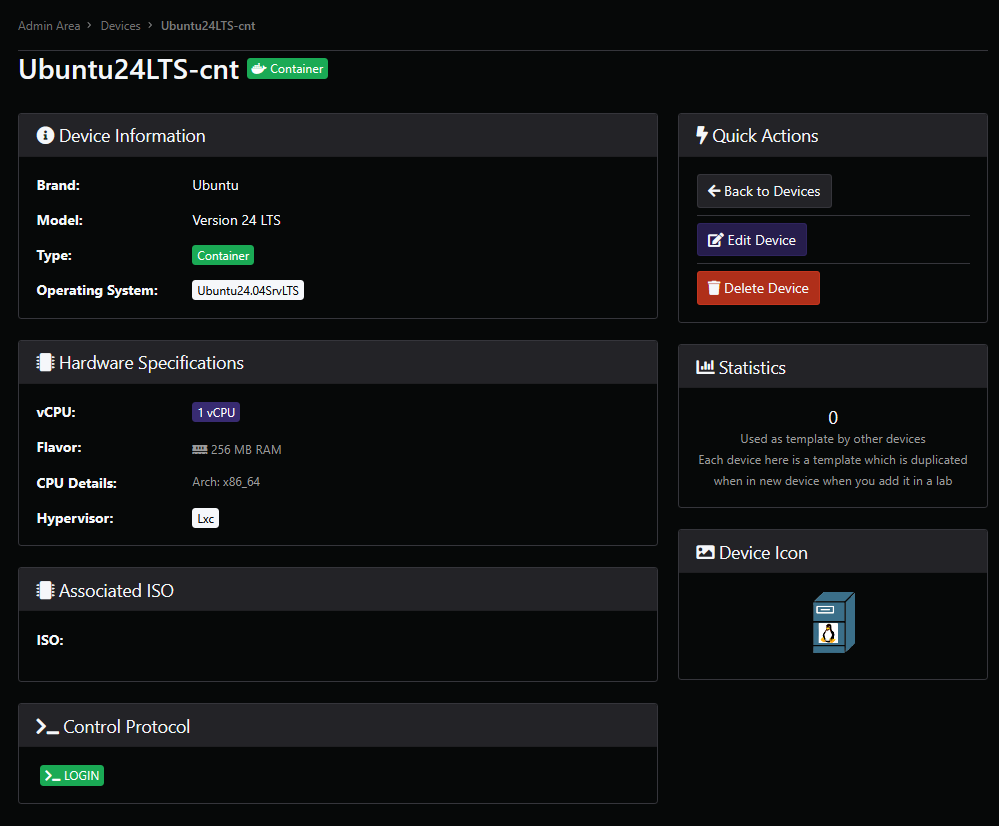
From there, you can consult information such as the type of the device, device information, hardware specifications, the associated ISO, control protocols, statistics and the icon of the device.
Once you have pressed the Edit Device button, you will be able to edit the device through this screen.
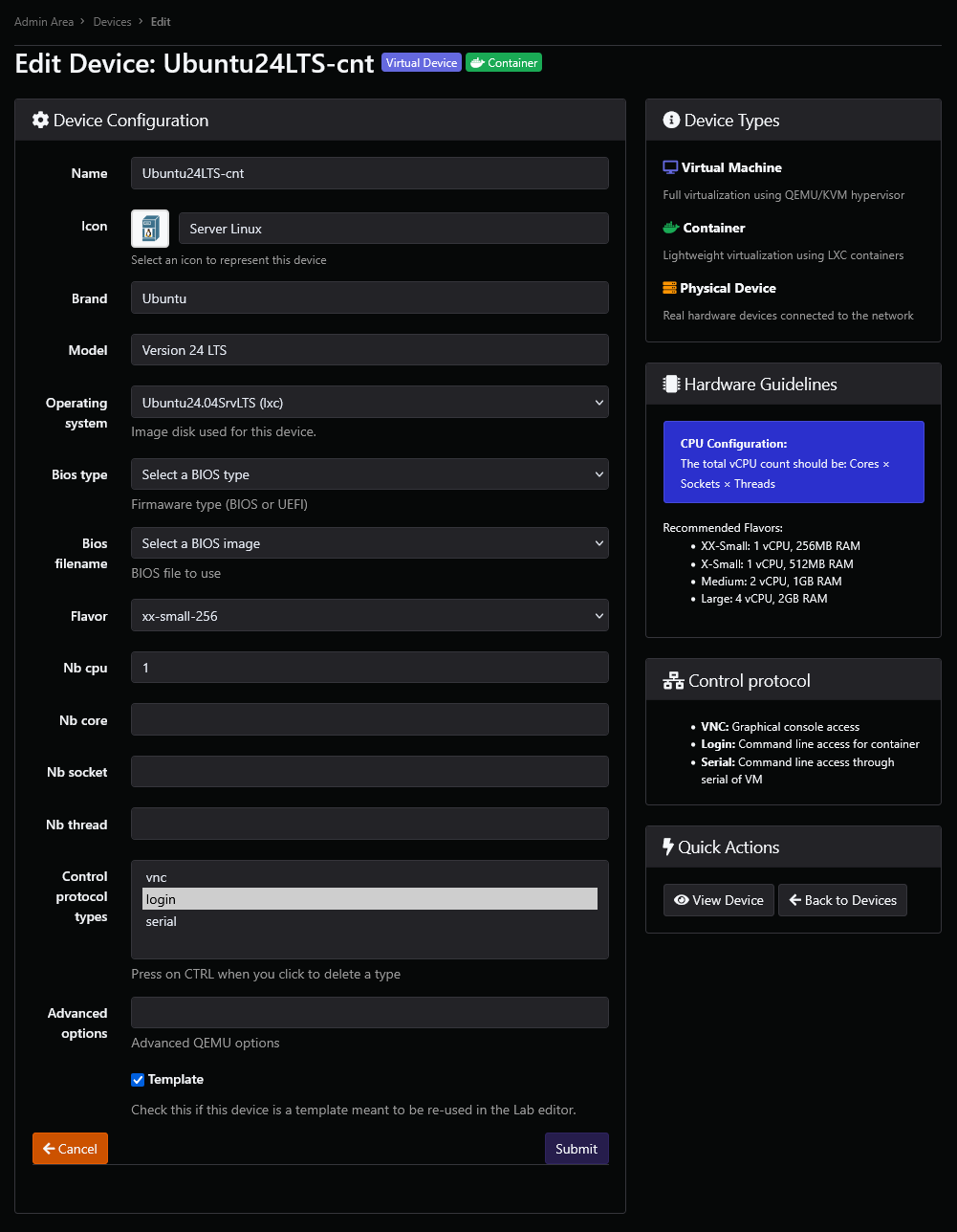
Modify the selected device and click on the Submit button to validate your changes.