User management

User creation
By clicking on the new user button, you can create a user. You have to give parameters like:
- password
- last name
- first name
- access level, which is the role of the user.
If you don't want them to log into their account, you have to uncheck the Enabled box.
User import
It is also possible to import users via the import from file feature. This should be done via a .CSV file; however, it must be encoded in UTF-8 and respect the following convention:
lastname,firstname,email,password,group
The password and the group are optional fields. However, if the provided password is not strong enough (minimum 12 chars, uppercase, lowercase, digit, special char (!@#$%&^*)), a new password will be generated automatically and will be displayed after the import.
The user can be notified of their password by email: you can check the Send password by email box.
- Checked: all imported users will receive their password by email.
- Unchecked: no emails will be sent, passwords will only be displayed on the results page.
User roles
In RemoteLabz, a user can have one of the following roles:
- student
- teacher
- editor teacher
- administrator
Permissions by role are as follows:
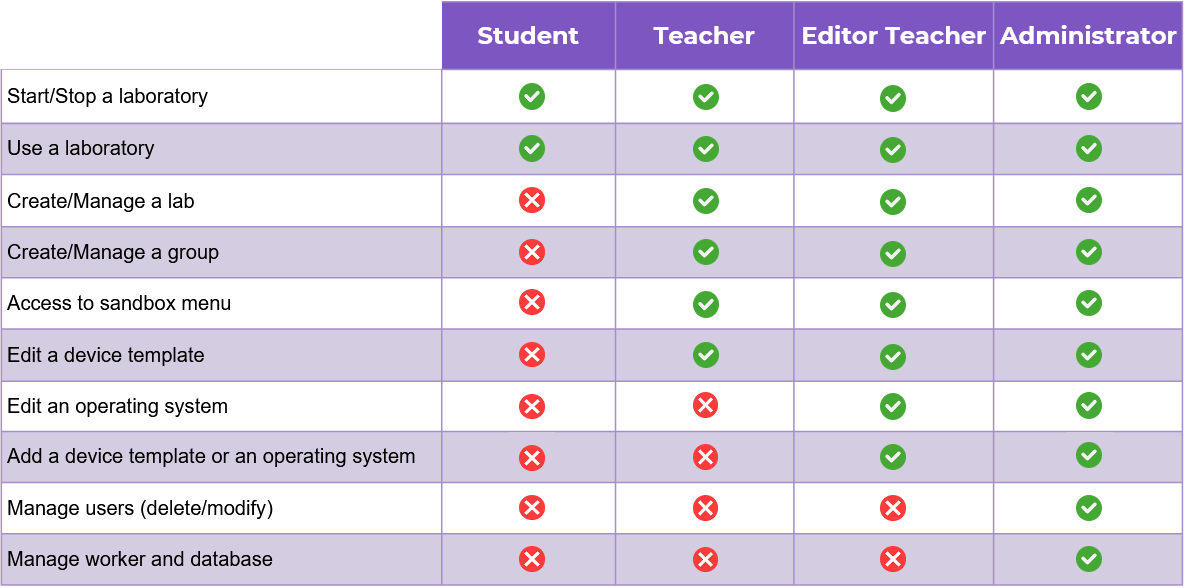
The administrator can administer the entire application.